Cancel a subscription
Stop renewal, plan service retirement, and confirm remaining usage and obligations.
Cancellation changes a subscription's renewal behavior. Select the organization in Console, open Organization Settings → Billing → Subscriptions, and select the subscription. You need subscription-management permission.
Review the effect before cancellation
Check the current term, renewal date, and agreement notice requirements. Identify production dependencies and export needed data before the service end date. For resources with independent usage charges, follow the product's retirement procedure.
Submit cancellation
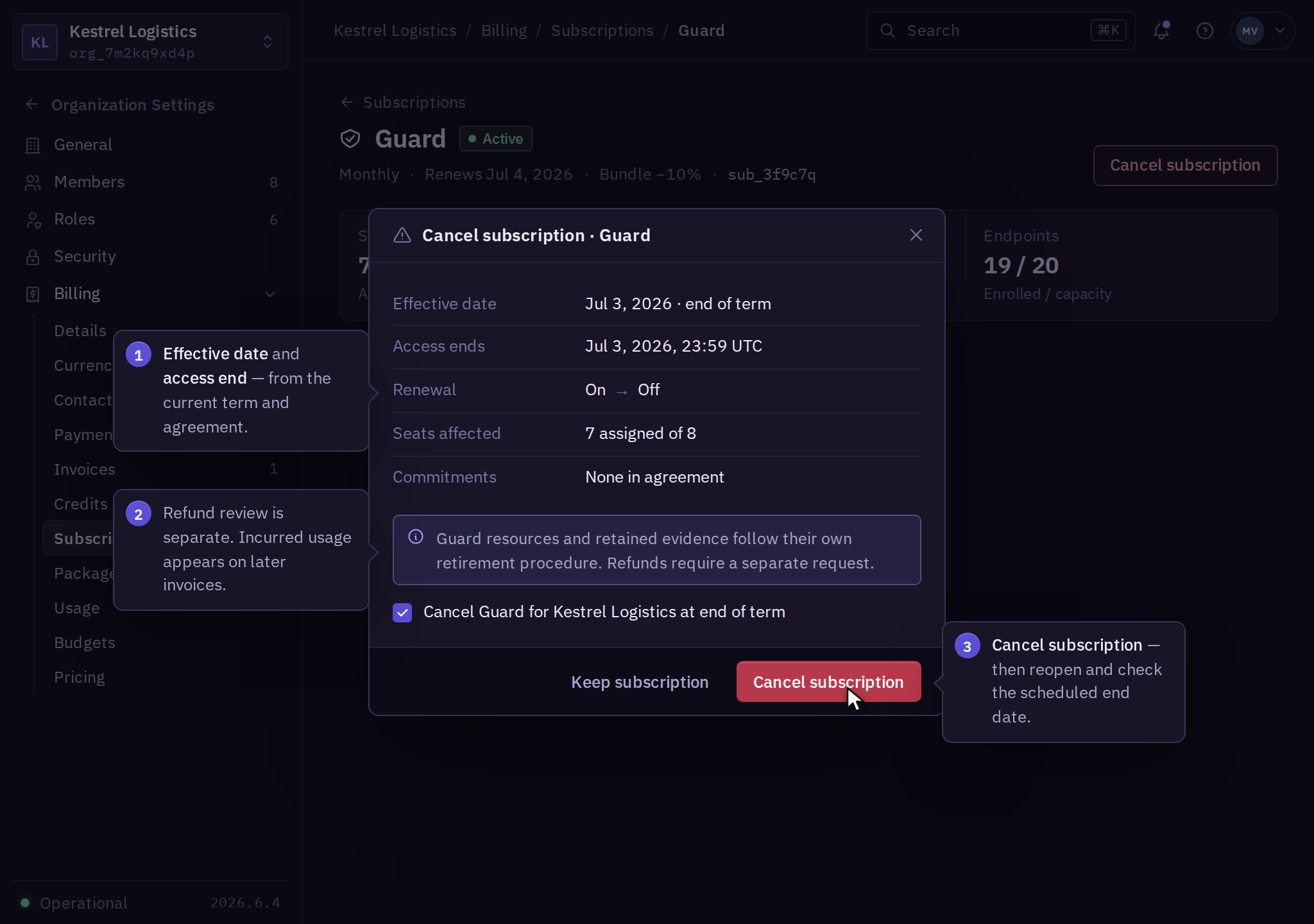
- In Billing → Subscriptions, open the subscription and select Cancel subscription.
- Review the effective date, access end date, and any stated remaining commitments.
- Confirm the cancellation, then reopen the subscription and check the scheduled end date and renewal state.
- Keep the confirmation for your business records.
If the request is interrupted, inspect the subscription's renewal state before submitting again. If no accepted end date appears, contact billing support with the subscription and request time.
If the subscription is managed by a contract and has no self-service cancellation action, contact billing support with the agreement reference, subscription, and requested end date. Obtain confirmation of the accepted effective date.
Confirm service retirement
Check that product resources and retained data have the intended lifecycle. Cancellation, product resource deletion, organization closure, and personal account deletion are separate operations.
Review later invoices for usage already incurred, independently retained resources, and agreed commitments. Report unexpected charges through refunds and disputes.
The applicable agreement and refund and cancellation policy govern commercial terms. A refund request requires its own review; cancellation confirmation alone does not establish refund approval.