Resolve a failed payment
Complete authentication, correct collection details, and settle an invoice.
Open Organization Settings → Billing → Invoices → Invoice → Payment attempts in Console to inspect a failed payment.
Cards
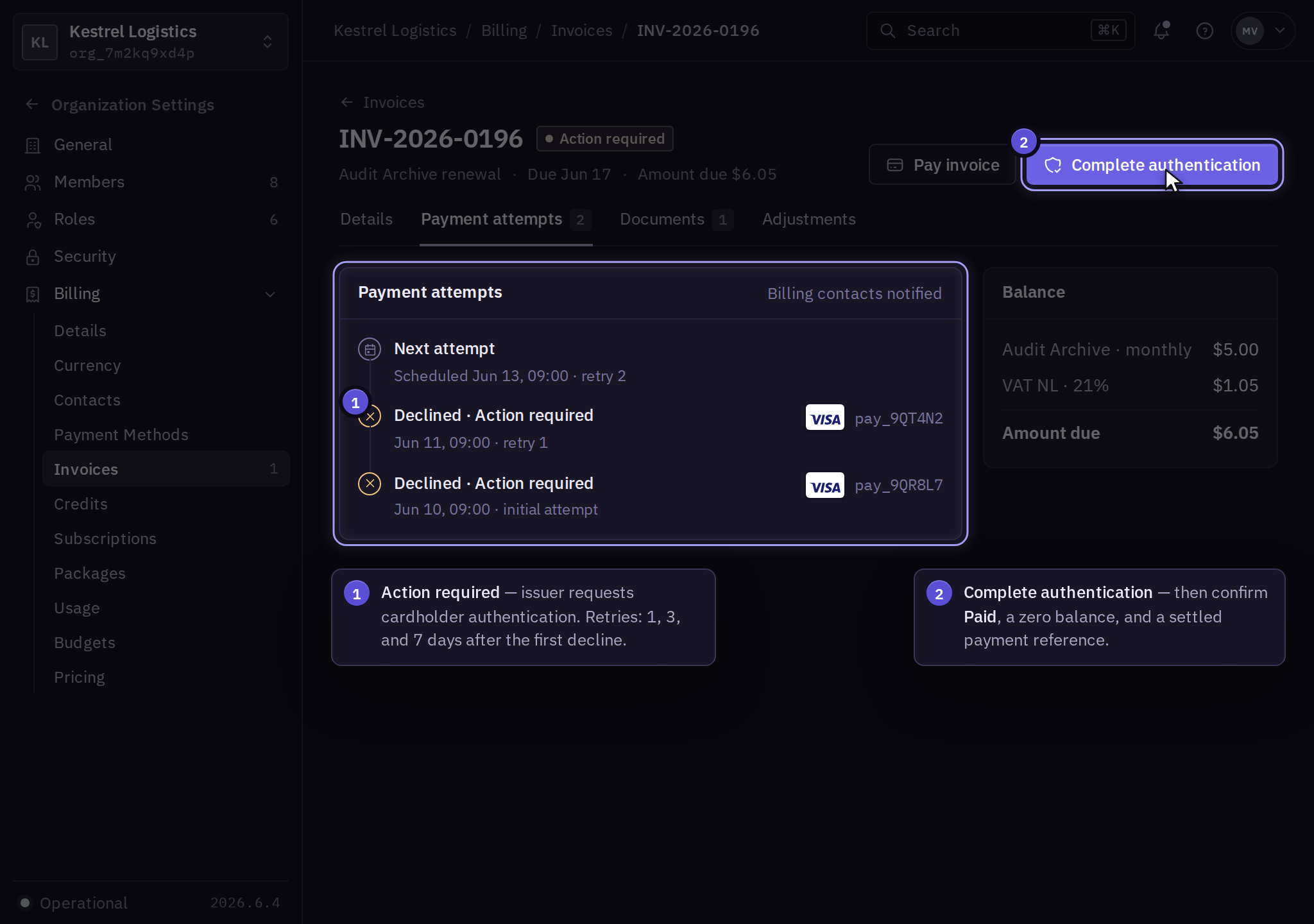
Automatic retries are scheduled 1, 3, and 7 calendar days after the first decline. A pending provider result pauses retries. The invoice shows the next attempt and notifies billing contacts.
For Action required, select Complete authentication. For an expired or blocked card, update the default method, then return to the invoice.
Bank and wallet payments
A failed debit shows its return reason. Use Retry payment after correcting the cause, or complete a replacement authorization when the invoice shows New authorization required.
For a transfer, check its allocation; short receipts remain Partially paid. For an expired Alipay or WeChat Pay checkout, start a new wallet payment.
If the bank or wallet reports success while Console shows Pending, contact billing with the invoice and provider reference before paying again.
Confirm settlement
Use Pay invoice for an unpaid balance. After approval, reopen the invoice and check for Paid, a zero balance, and a settled payment reference. Download its receipt.
Service restrictions
For unsuccessful collection, billing can issue notice identifying the unpaid invoice, affected service, restriction, and at least 5 business days to respond. Signed agreements can specify another process; urgent fraud or security restrictions follow the Terms of Service.
After settlement, confirm the restoration action in the billing case. Have a product administrator check access and service health before closing the case.