Usage, budgets, and spending controls
Review metered charges and distinguish budget alerts from enforced product limits.
Usage records explain consumption charged to your organization. In Console, open Organization Settings → Billing → Usage and select the product and period.
Review consumption
Inspect the meter name, quantity, unit, time range, and estimated cost. Compare them with the product's pricing definition. A partial-period estimate can change as usage is reported; use issued invoices for settled billing records.
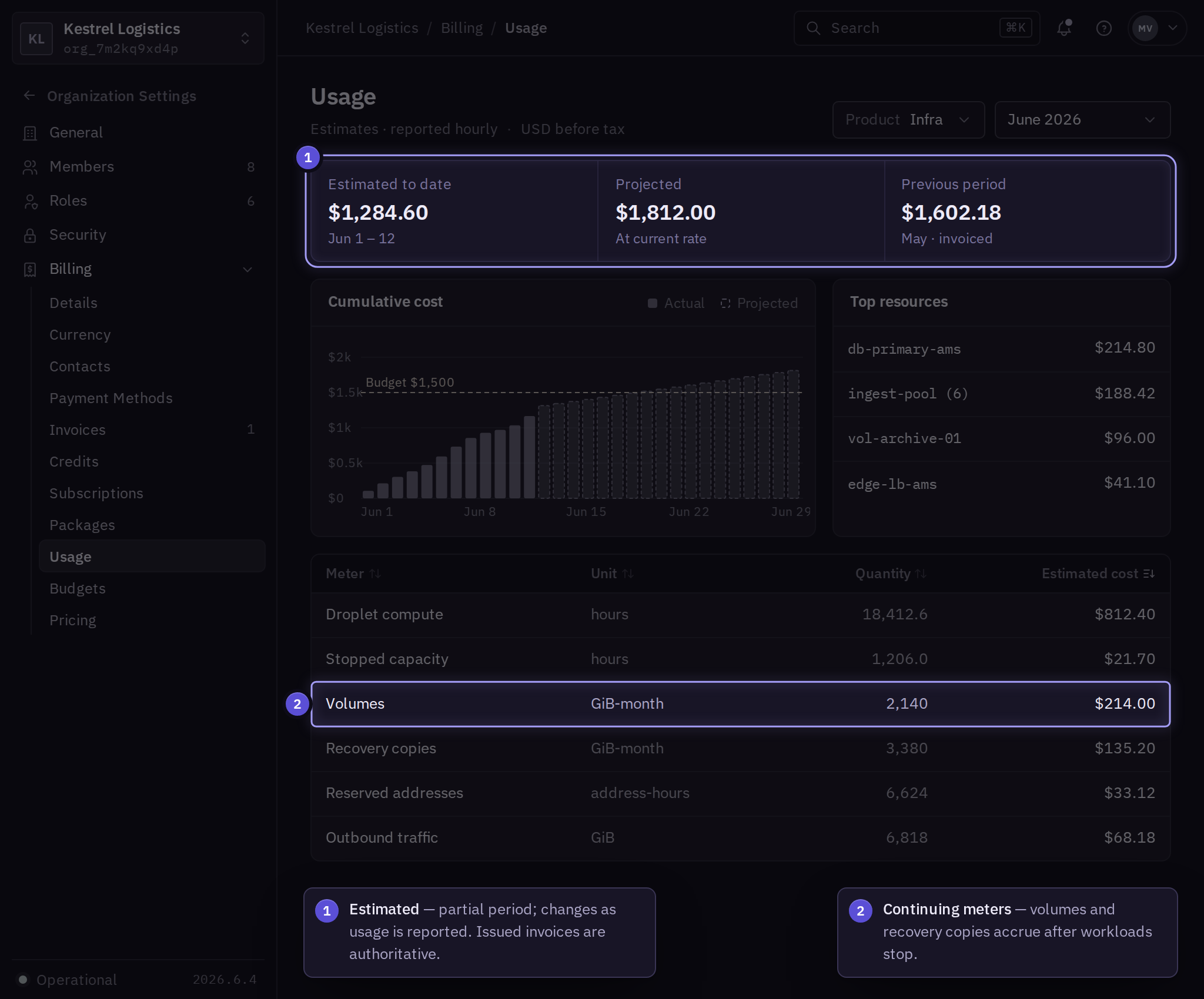
For unexpected usage, record the product, meter, resource, and time range. Use the product console to investigate which resources were active. Check retained storage, backups, reserved capacity, or other continuing meters before assuming a stopped workload has no remaining cost.
Purchased capacity
Guard packs and Status packs have explicit purchased limits and no automatic paid pack purchases. Inspect Billing → Packages alongside usage. An endpoint is not a human seat, and public notification email does not consume an operator seat.
Configure a budget alert
- In Organization Settings → Billing → Budgets, select Create budget.
- Set the period, amount, covered products, thresholds, and recipients.
- Review and save the budget, then reopen it to confirm the scope and notification addresses.
If validation fails, correct the indicated field and inspect the saved budget before submitting again.
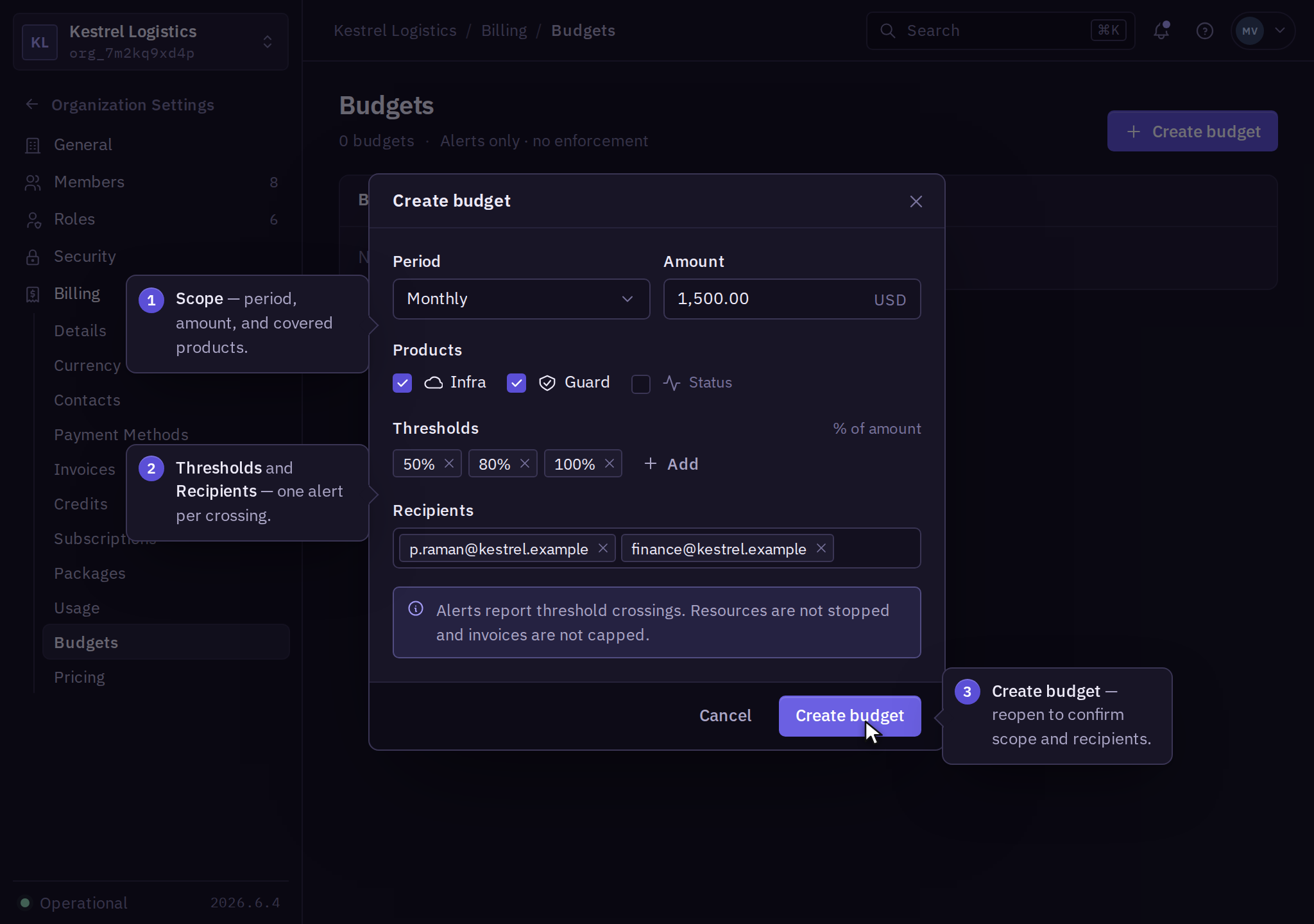
A budget alert reports a threshold crossing. It does not itself stop resources or guarantee a maximum invoice. Delayed usage reporting can affect when an alert appears.
Enforce a product limit
Use the product's documented spending or admission controls when you need an enforced limit. Infra spend caps describe the infrastructure controls and their boundaries. Check the response to a reached cap and the meters that can continue afterward.
For contractual limits, shared allowances, or custom usage reporting, contact billing support with the intended scope.