Multi-factor authentication
Enroll an authenticator, preserve recovery codes, and replace a lost device.
Multi-factor authentication (MFA) adds a verification step to Solarius sign-in. Configure it under Account settings → Security → Multi-factor authentication in Console.
Enroll an authenticator
- Select Add authenticator and complete reauthentication through Identity.
- Scan the displayed QR code with your approved authenticator app, or enter its setup key manually.
- Enter a fresh authenticator code and select Verify and enable.
- Save the issued recovery codes in a secure location accessible without the enrolled device.
- Confirm the authenticator is listed as Enabled. Test a new Console sign-in before removing a working factor.
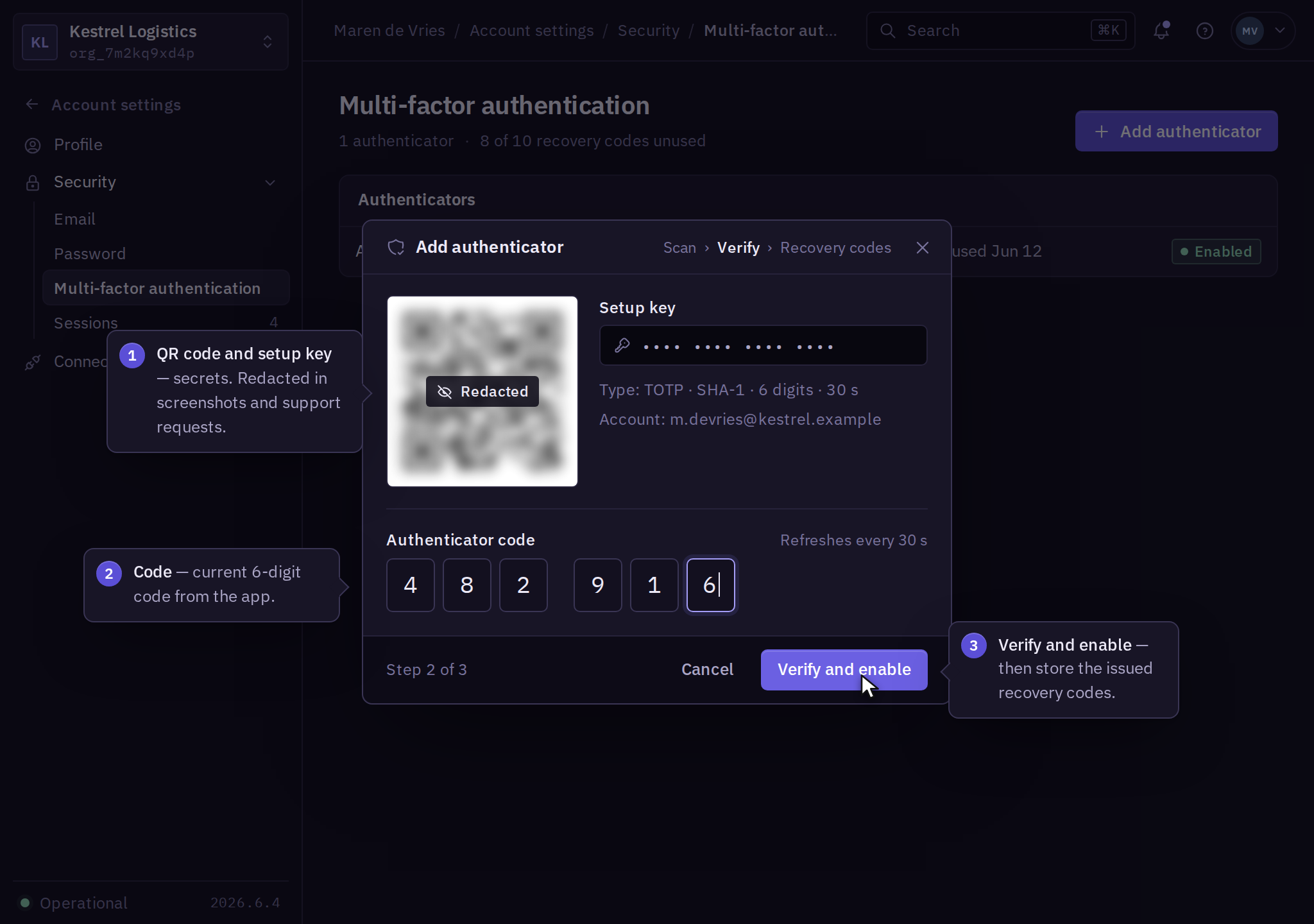
Setup remains incomplete until the code is verified. QR codes and setup keys are secrets; do not include them in screenshots or support requests.
Recovery codes and replacement
Each recovery code can be used once. In Multi-factor authentication → Recovery codes, select Generate replacement codes to replace the set. Reauthentication is required; previously issued recovery codes become invalid. Store the replacement set before closing the result.
Use Add authenticator to enroll a replacement device before choosing Remove on the old factor. Removal is blocked when the remaining factors cannot satisfy an organization MFA requirement. Check the remaining enrolled factors after the change.
Organization requirements
Organization access policies can require MFA for administrative or all member access. Enrolling a personal factor and enabling an organization requirement are separate actions.
For company sign-in, inspect the provider test result under SSO to confirm its authentication method satisfies the organization's requirement.
If time-based one-time password (TOTP) codes fail, enable automatic time on the authenticator device and enter a fresh code. For a lost device with no usable recovery method, follow account recovery.