Change your email or password
Update sign-in details without losing access to business organizations.
Manage sign-in details under Account settings → Security in Console. Console directs you to Identity for authentication and sensitive-change verification.
Change your email
- In Account settings, open Security → Email → Change email.
- Enter an address you control, complete reauthentication, and select Send verification.
- Follow the message sent to the new address. The existing address remains the sign-in email until verification succeeds.
- Reopen Security → Email and confirm the new address is marked Verified.
An address already linked to another account cannot be assigned. Contact support to resolve an account-linking issue. If the verification message is missing, follow email recovery.
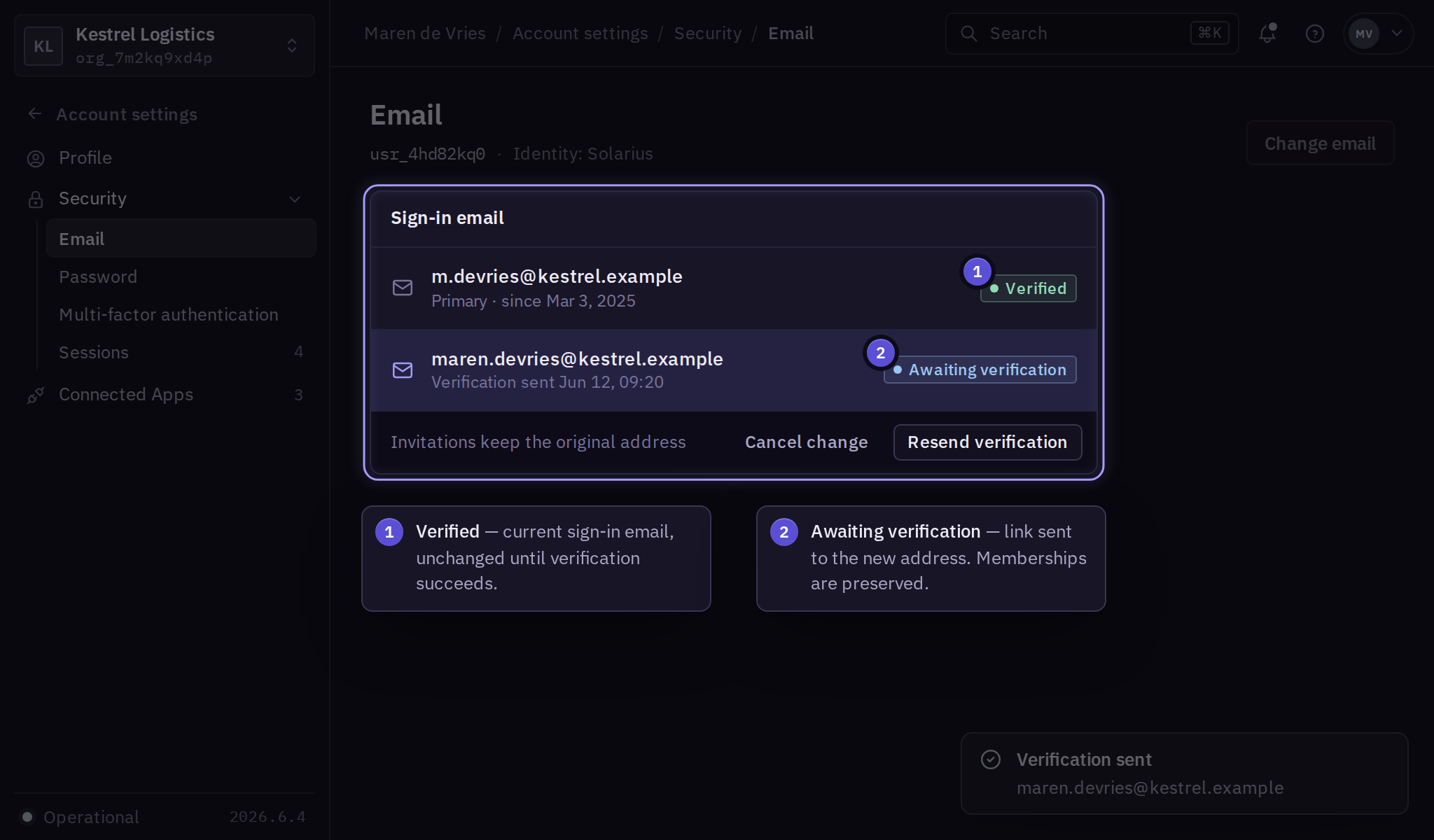
An email change preserves the account's existing organization memberships. Pending invitations still target their original address; ask an administrator to revoke and replace invitations that no longer match. Review billing recipients separately.
Change your password
- In Account settings, open Security → Password → Change password.
- Enter the current and replacement passwords, complete verification, and select Save password.
- Check the confirmation and test a new Console sign-in before ending your current session.
For a forgotten password, start at Console and select Forgot password in the Identity sign-in flow. Complete the emailed reset before trying the replacement password. Use account recovery if the mailbox or MFA factor is unavailable.
Company-managed credentials
A provider-managed credential shows Managed by your identity provider instead of a local password editor. Use the company's change or recovery process. Changing a Solarius profile does not change an external provider's password.
After suspected compromise, also review sessions and connected applications.