Company single sign-on
Connect a company identity provider, map access, test sign-in, and enforce SSO.
Single sign-on (SSO) lets employees authenticate through a company identity provider. Configure it in Organization Settings → Security → Identity providers in Console. The owner or a member with authentication-management permission can configure a connection.
SSO establishes identity. Organization roles and product assignments determine access. Directory provisioning synchronizes membership independently of interactive sign-in.
Configure a provider
- Select Add provider and choose SAML or OpenID Connect.
- For SAML, copy the displayed service-provider entity ID and assertion-consumer URL to the provider. Import its metadata or enter its issuer, sign-in URL, and signing certificate.
- For OpenID Connect, copy the displayed redirect URL to the provider. Enter its issuer URL, client ID, and client secret. Store the secret through the protected credential field.
- Set the stable subject claim and verified email mapping. Use the provider's immutable subject rather than display name as the identity key.
- Select Save connection. The connection remains in Test mode until enforcement is enabled.
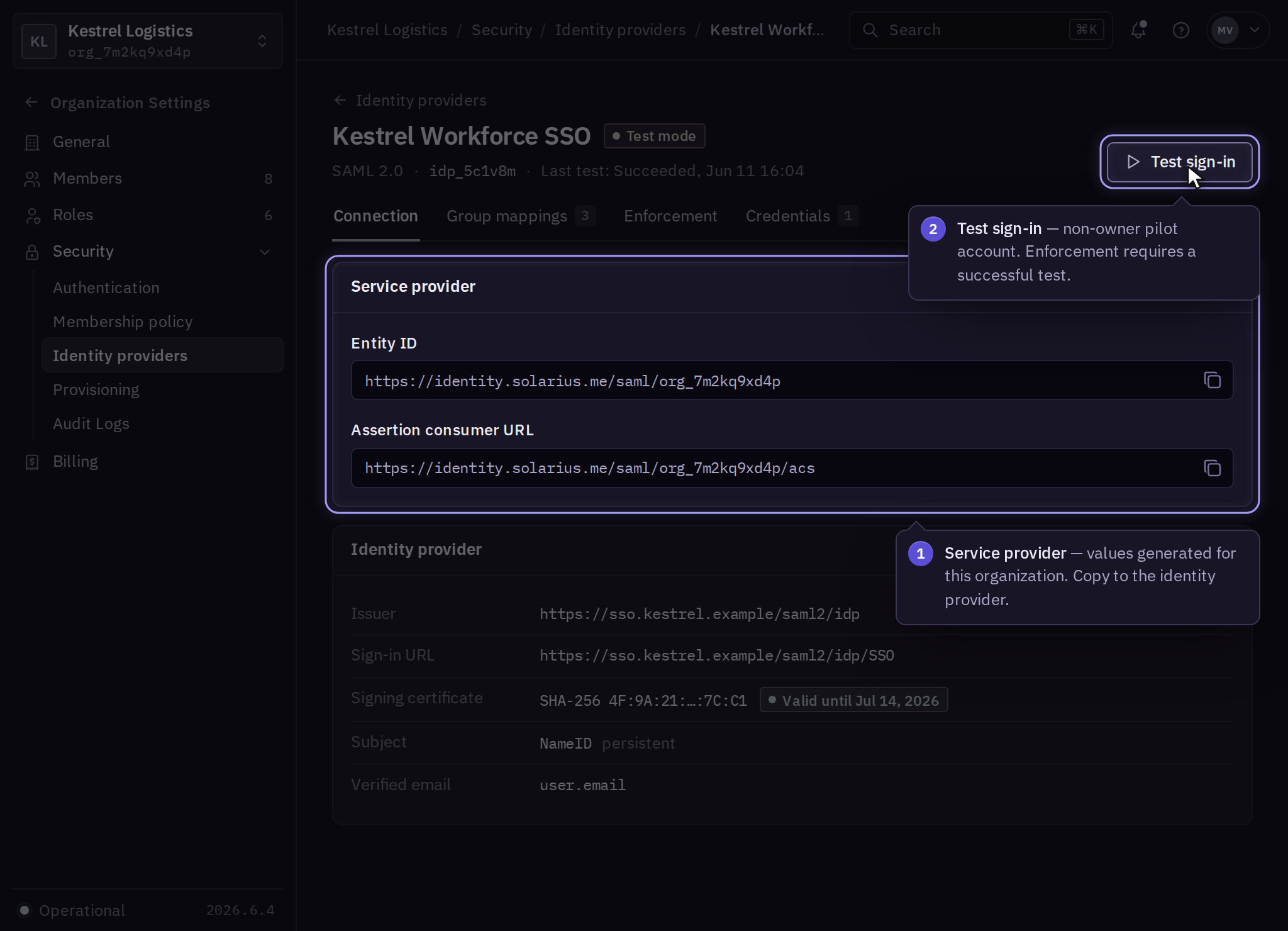
Validation errors identify the field to correct. Failed issuer, audience, signature, redirect, or time validation rejects sign-in. Use the exact URLs generated for this organization rather than copying another organization's values.
Map and test access
Open the provider's Group mappings tab. Map exact provider group identifiers to existing organization roles. Product-specific group or team mappings are configured in the affected product. Unmapped group text grants no role.
Select Test sign-in and complete the flow with a non-owner pilot account. Check the recorded subject, verified email, mapped roles, organization selection, and actual product access. Review the test result before changing enforcement.
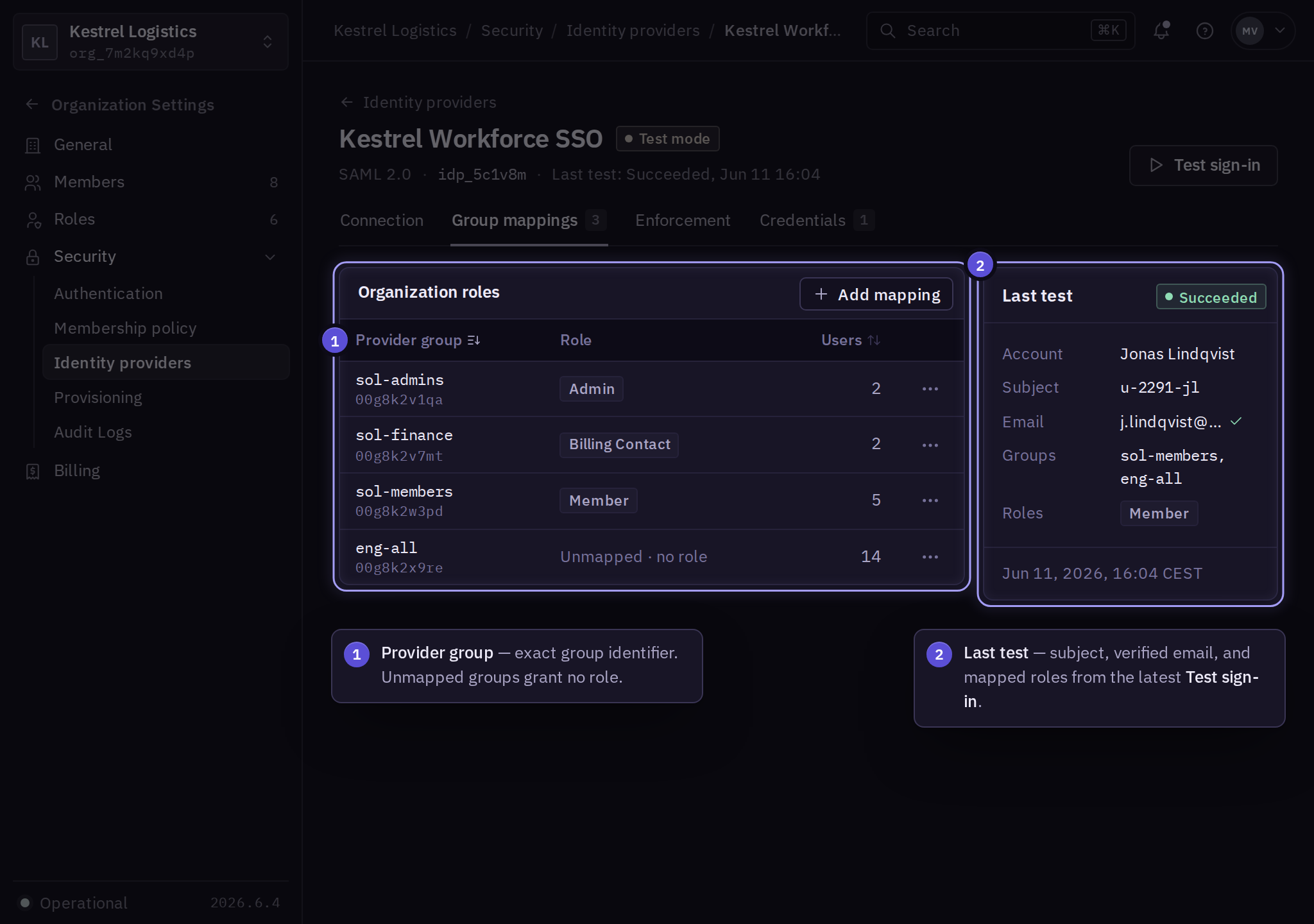
A provider identity must be linked to the intended Solarius account. A subject change or ambiguous account match requires an administrator-reviewed link; an email change alone does not transfer organization ownership.
Require company sign-in
In Identity providers → Provider → Enforcement, designate a recovery owner with enrolled MFA. Test that account's recovery sign-in, then select Require SSO → Review → Enable. Enforcement requires a successful provider test and verified recovery access.
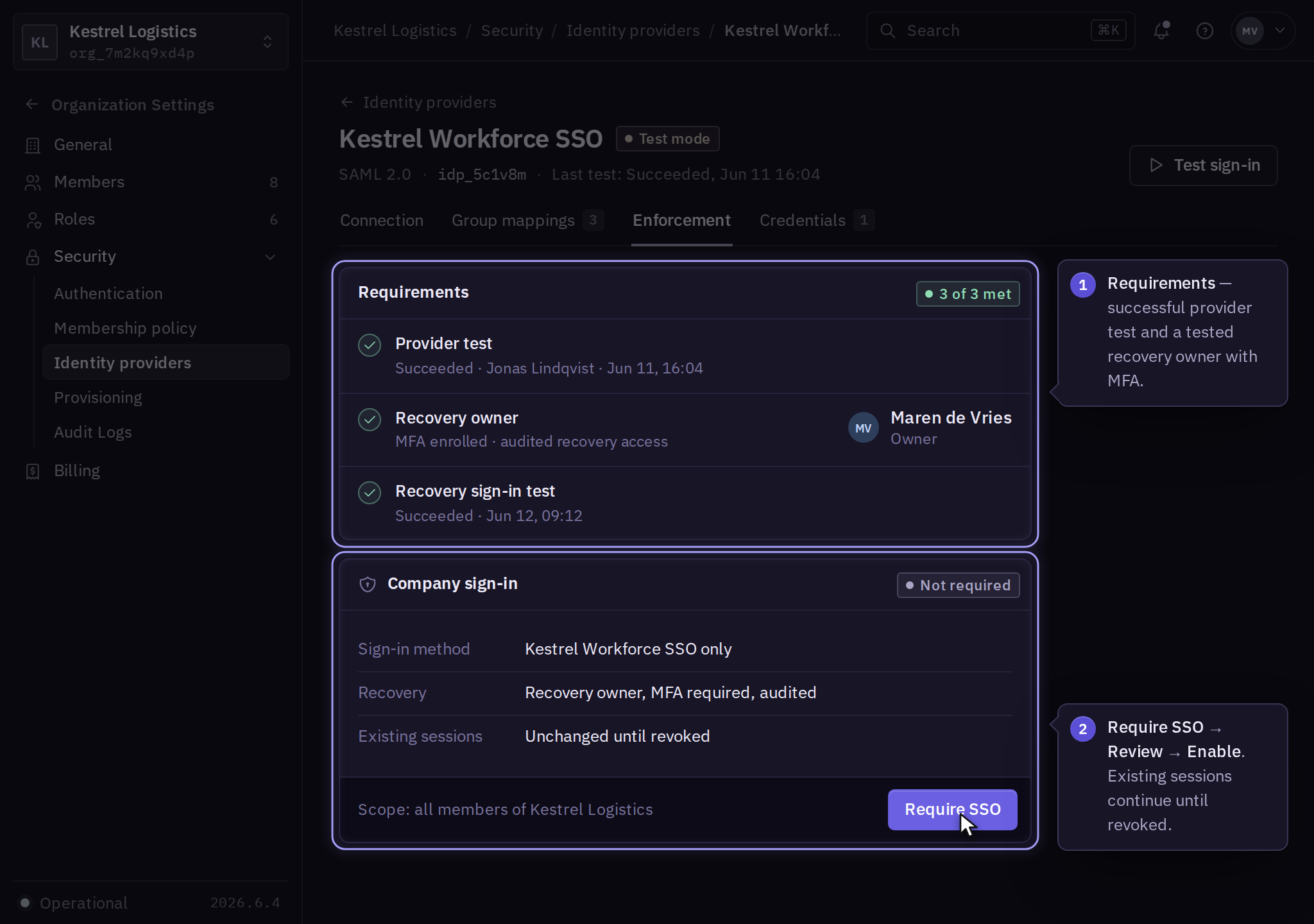
Existing sessions are separate from the enforcement change. Use the member's Sessions → Revoke all when an existing session must end immediately. For an outage, the designated owner selects Use recovery access in the organization sign-in flow, completes MFA, and repairs the provider settings. Recovery use is audited.
Maintain the connection
Open Provider → Credentials to replace a signing certificate or client secret. Add the replacement, test sign-in, then remove the retired credential. Do not remove a provider while enforcement still requires it; disable enforcement or select a tested replacement first.
For an employee departure, use offboarding. SSO and personal browser sessions are separate from product API credentials and work already accepted by a product.