Roles and permissions
Assign organization roles and inspect the permissions behind an access decision.
Organization roles control general Solarius administration. Assign them in Organization Settings → Members → Member → Roles in Console. A member can hold several roles; their grants combine within the organization.
Built-in roles
Built-in roles grant these organization permissions:
| Role | General Solarius authority |
|---|---|
| Owner | Organization settings, membership, billing, ownership transfer, and closure requests |
| Admin | Membership, role assignments, authentication settings, audit records, and product access administration |
| Billing Contact | Billing details, payment methods, invoices, subscriptions, usage, and finance recipients |
| Member | Organization profile and separately assigned product access |
| Viewer | Organization profile and separately assigned product read access |
Each organization has one owner. Admin does not grant payment or subscription management by itself; add Billing Contact when the same person also performs finance work. Invoice recipients configured under billing contacts do not automatically receive a role.
Products define their own roles and resource scopes. Product resource access requires the corresponding product role assignments. See Infra roles and Guard access.
Assign and inspect access
You need the Owner role or permission to manage role assignments.
- In Organization Settings → Members → Member → Roles, select the required roles and select Save roles.
- Open Effective access to inspect grants and their sources.
- Have the member confirm the intended task. If access differs from the saved assignment, inspect the grant sources before changing another role.
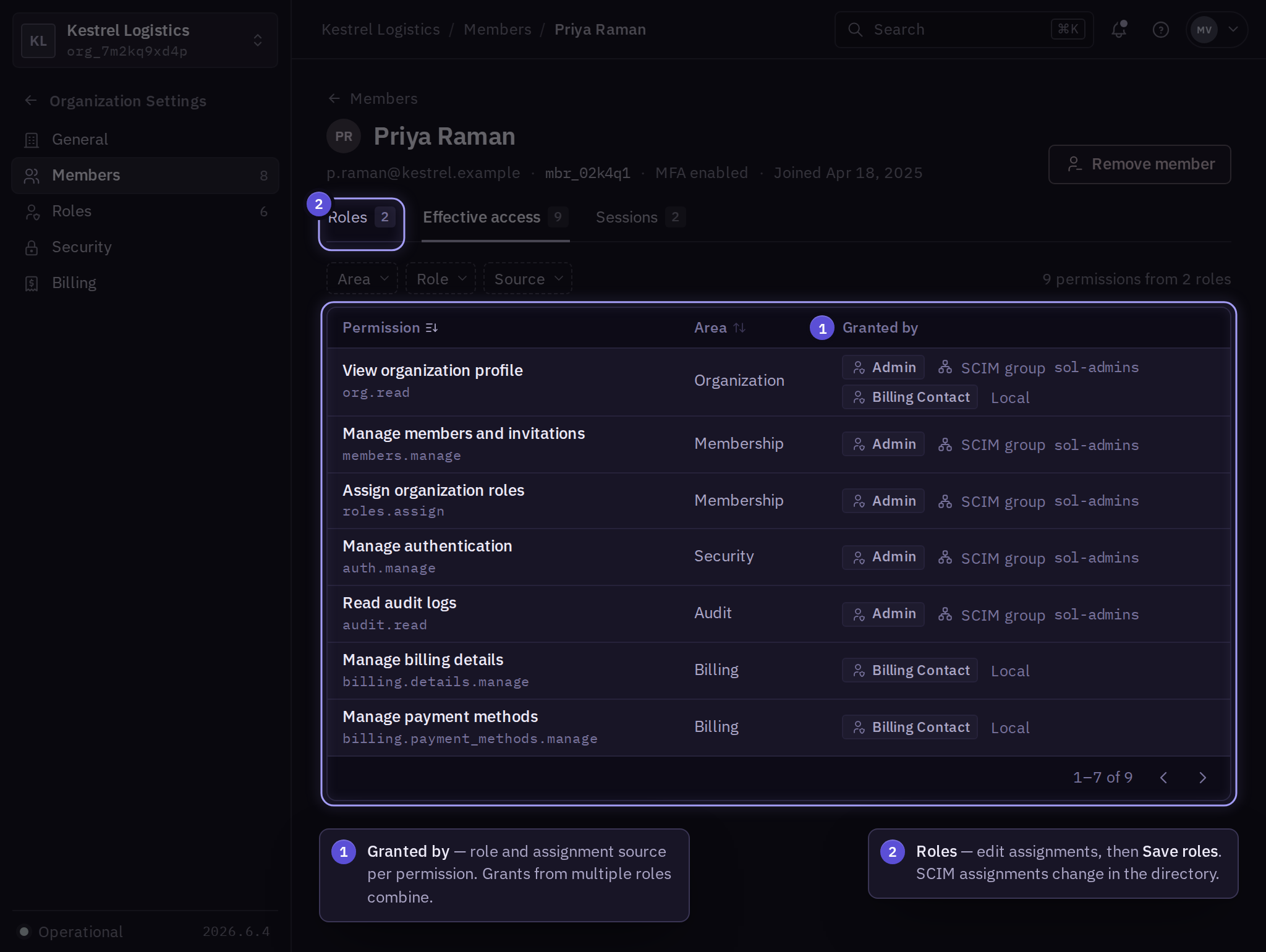
Adding a narrow role does not subtract another role's broader grants. Remove the grant responsible for unwanted access. Directory-managed assignments must be changed through their directory mapping.
Custom organization roles
- In Organization Settings → Roles, select Create role.
- Enter a name and select named permissions for membership, security, audit, or billing tasks. The editor lists required read permissions.
- Select Review access, inspect the permission summary, and save.
- Reopen the saved role and confirm its permissions before assigning it through the member's Roles tab.
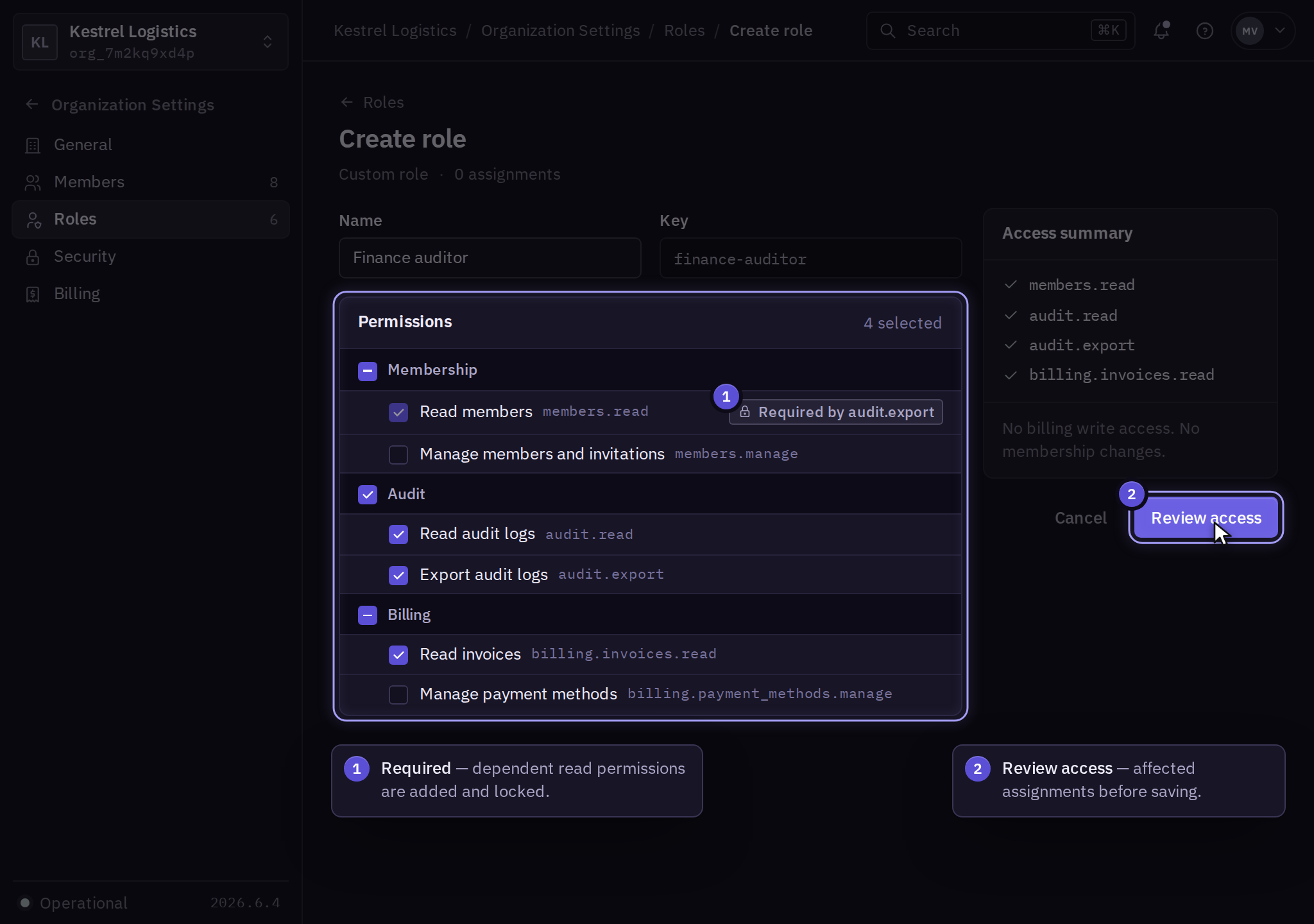
Editing a role changes the permissions of its active assignments. A role with assignments cannot be deleted; remove or replace those assignments first. Ownership transfer remains an owner-only action.
For recurring checks, follow access reviews. Review changes under audit logs.