Directory provisioning
Synchronize directory membership and roles through a scoped SCIM connection.
Directory provisioning synchronizes your company directory with one Solarius organization. Configure it in Organization Settings → Security → Provisioning in Console. SSO configuration is documented separately under company sign-in.
Connect a directory
You need the Owner role or authentication-management permission to create a System for Cross-domain Identity Management (SCIM) connection.
- In Organization Settings → Security → Provisioning, select Create SCIM connection.
- Copy the displayed SCIM base URL and generate a provisioning token.
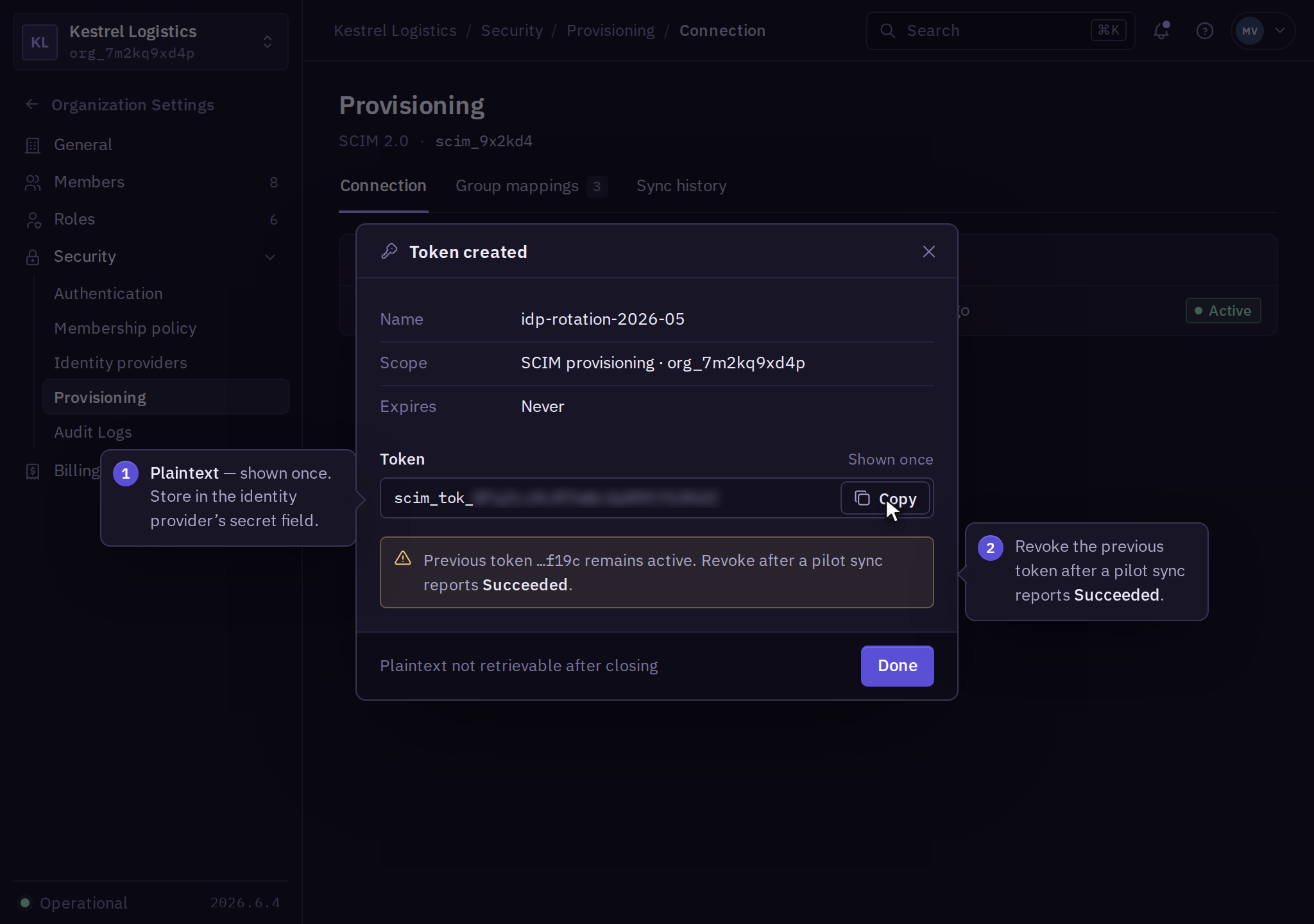
- Store the token in your identity provider's secret field. Its plaintext is shown once.
- In the provider, select the assigned users and groups. Map a stable external identifier, work email, and display name.
- In Console, configure role mappings under Provisioning → Group mappings. Unmapped users receive no administrative role.
The token authorizes provisioning for this organization and is not a product management API key. Test the connection before assigning the wider directory.
Test the lifecycle
- In the provider, provision a pilot account. In Console, open Provisioning → Sync history and check the event result.
- In Organization Settings → Members, inspect the pilot's membership and Effective access.
- In the provider, test an assignment change and deactivation. Check each sync result and the pilot's resulting access in Console before expanding the rollout.
For a failed event, correct the error recorded in Sync history at its source and repeat that pilot change. Check existing membership before resubmitting an interrupted creation.
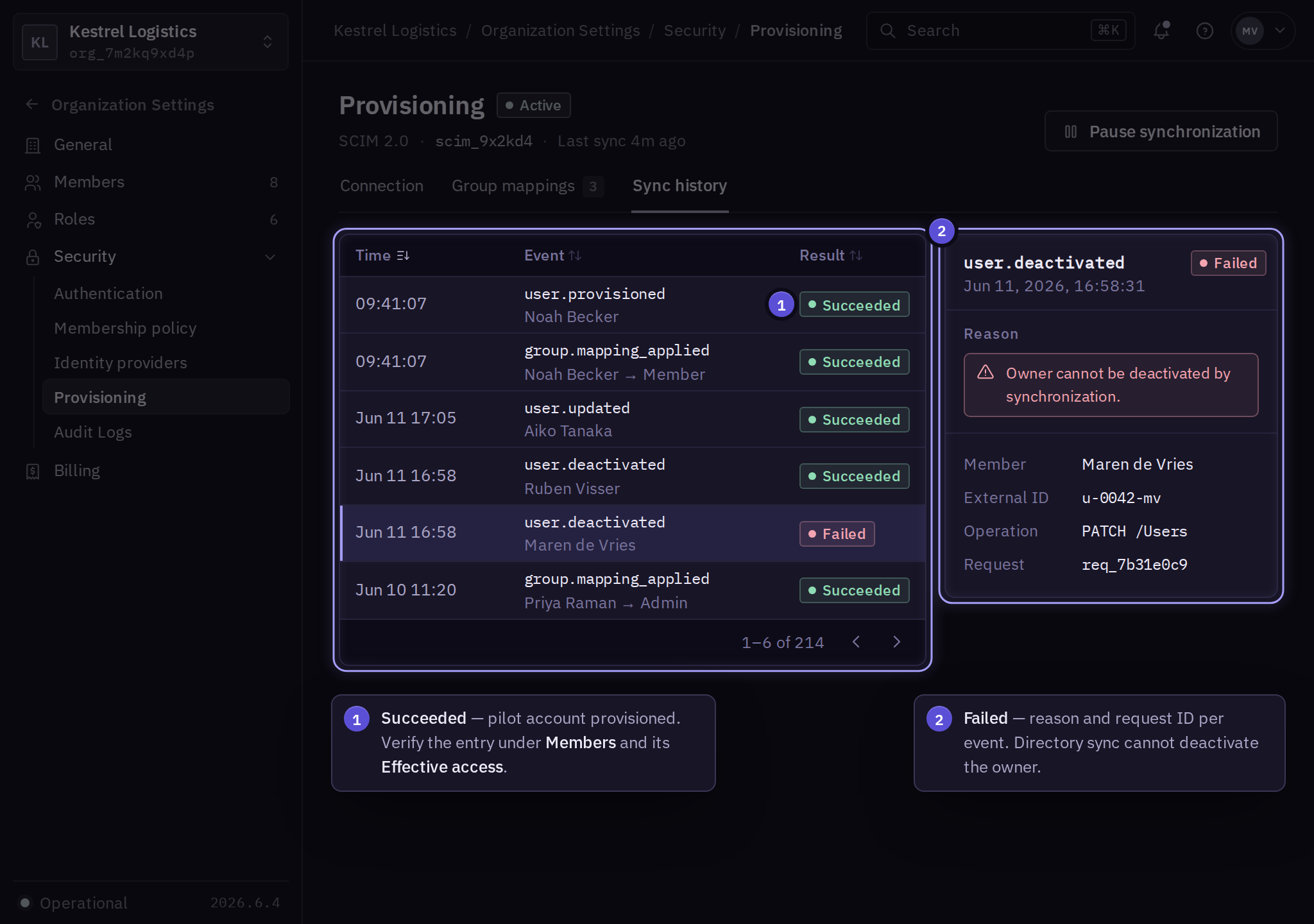
Directory-managed assignments show their source and cannot be edited as local assignments. Change them in the upstream directory. Independent local assignments remain effective and must be reviewed separately.
Deactivation blocks new organization access. It does not delete the person's global Solarius account, remove organization resources, or cancel work already accepted by a product. Use Member → Sessions → Revoke all and the product's credential-revocation procedure when responding to a departure.
Rotate or disconnect
- In Provisioning → Connection → Tokens, select Create token to issue a replacement.
- Install the replacement in the provider and run a pilot synchronization.
- In Provisioning → Sync history, confirm Succeeded before revoking the old token. If the pilot fails, keep the working token active while correcting the reported error.
Select Pause synchronization before disconnecting. Review the affected members, arrange local administration, then revoke connection tokens. Existing memberships remain until explicitly removed. The owner cannot be deactivated by directory synchronization; transfer ownership before offboarding that person.